01
Install and sign in
The parent installs PhotoProof, signs in, and starts the family space used for pairing.
The parent starts the family, pairs each child device, chooses access rules, and launches the first mission.
The parent installs PhotoProof, signs in, and starts the family space used for pairing.
Create a parent PIN and use Face ID when available to protect approvals and overrides.
Install PhotoProof on the child device, choose Child, then scan the parent’s QR code or enter the backup key.
Choose a due-time lock or reward minutes. Essential communication remains available.
Use Apple’s picker where supported, or let PhotoProof protect non-essential apps as a family-wide rule.
Add the task, photo requirement, deadline, review approach, and access behavior.
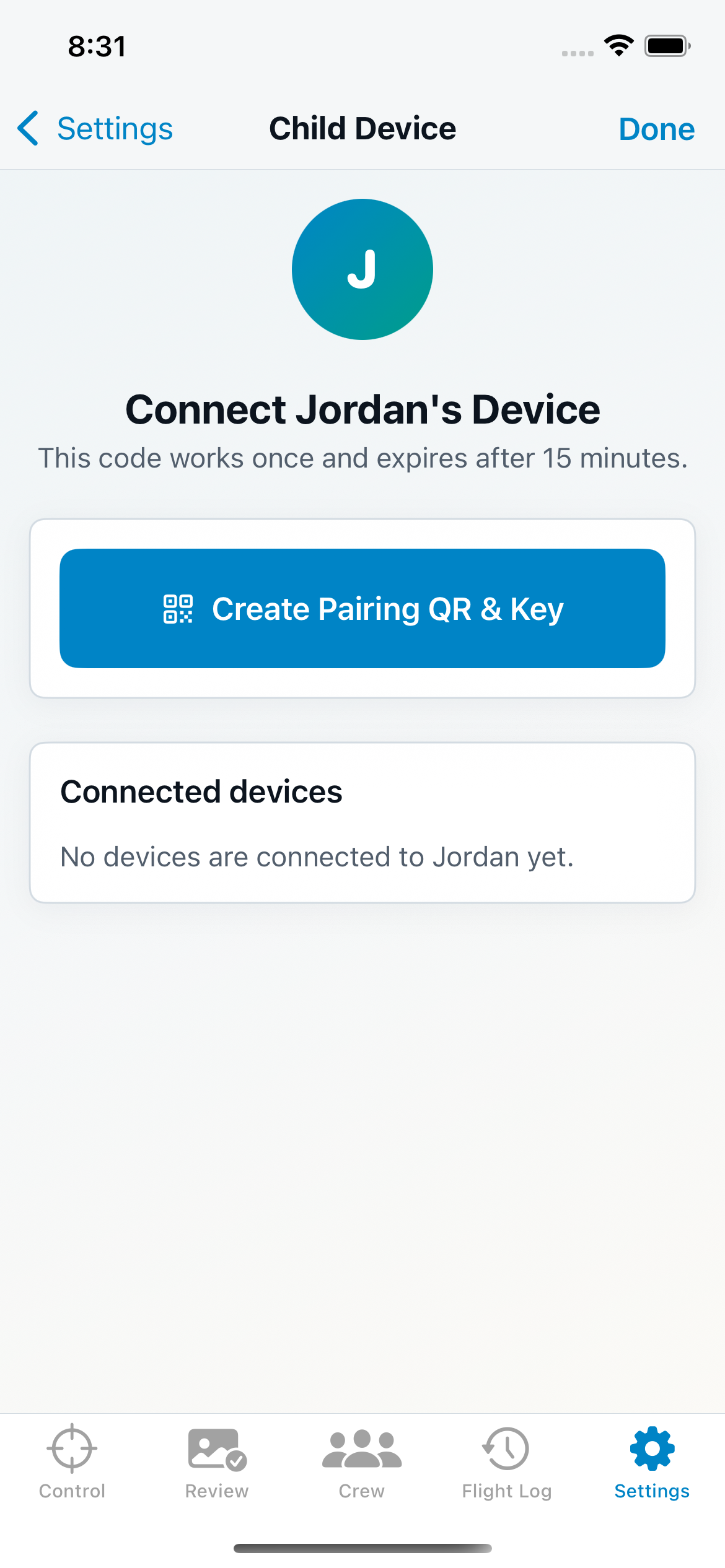
Children do not need email addresses or their own Apple IDs to participate in a PhotoProof family. A parent chooses the child and creates a one-time QR code and backup key for that device.
Start small. The first successful mission teaches the workflow faster than a complicated household setup.
Make sure the child device appears under the intended child profile before assigning work.
Agree on what a good proof photo should show, then test the parent approval flow once.
Use a clear task and a modest access rule before relying on the system for larger routines.
PhotoProof is a family accountability tool, not a substitute for supervision, communication, or emergency access. Parents should keep essential communication and safety apps available.
No. A child device is paired to a child profile inside the parent’s PhotoProof family.
Multi-parent household support is planned as a premium capability. Availability will be confirmed before release.
Photo tasks and approvals can still function, but app restrictions cannot be applied until the required Apple permission is granted.
Yes. The parent flow includes authenticated temporary unlocks and overrides for legitimate exceptions.